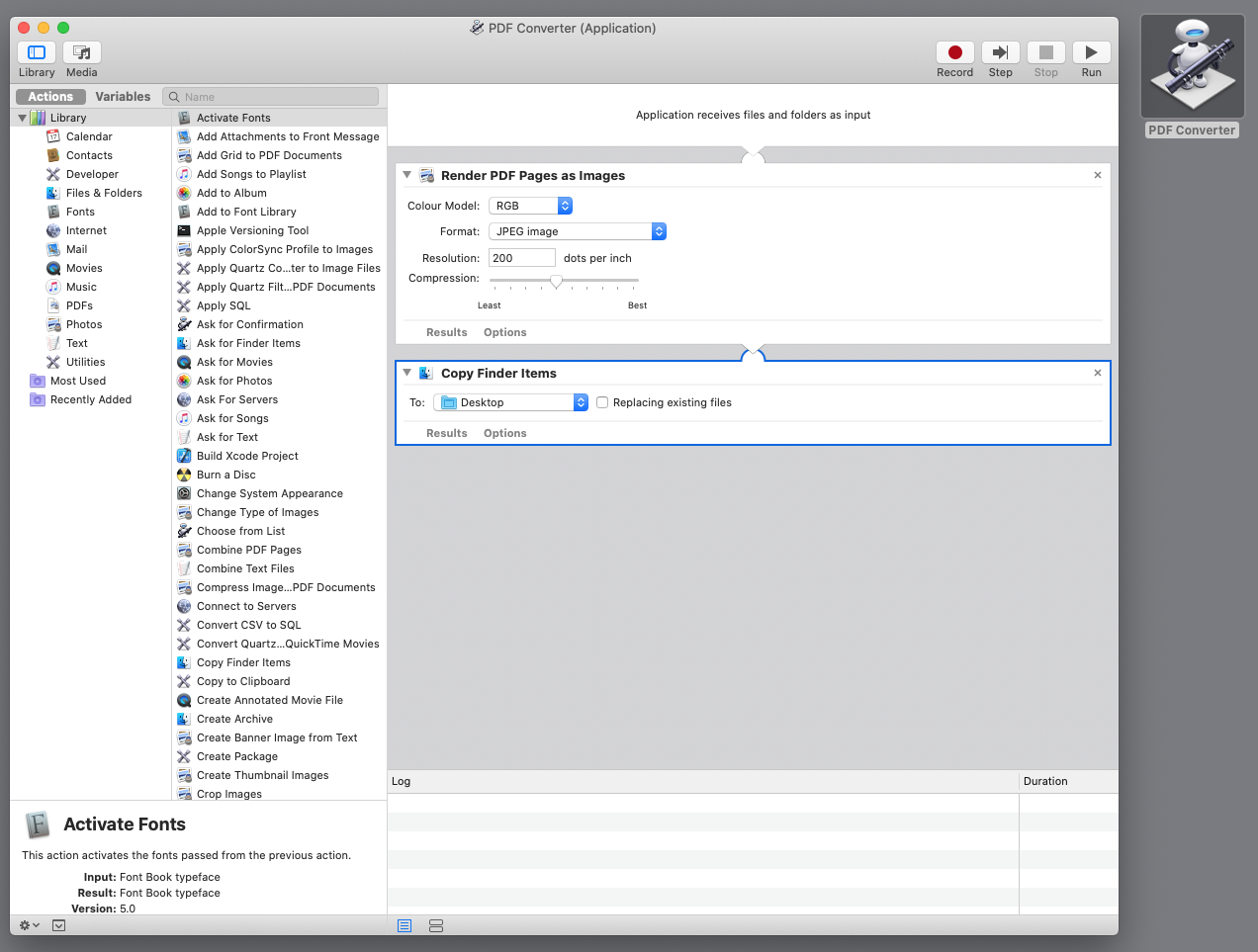
I was looking for a simple way to convert a bunch of pdf files into jpg files the Mac. I had a few hundred to do so didn’t want to do each one individually and I also didn’t want to use an online converter.
For those who don’t know (I didn’t) you can set up a simple converter using one of the many standard issue Macs Apps – Automator.
Automator has a list of actions already built. The Render PDF Pages to Images action is one of them.
Here’s how to write a PDF to JPG conversion program
- 1 Open Automator
- 2 Select File>New a wizard pops asking you to choose a “type of document”
- 3 Select Application and click Choose
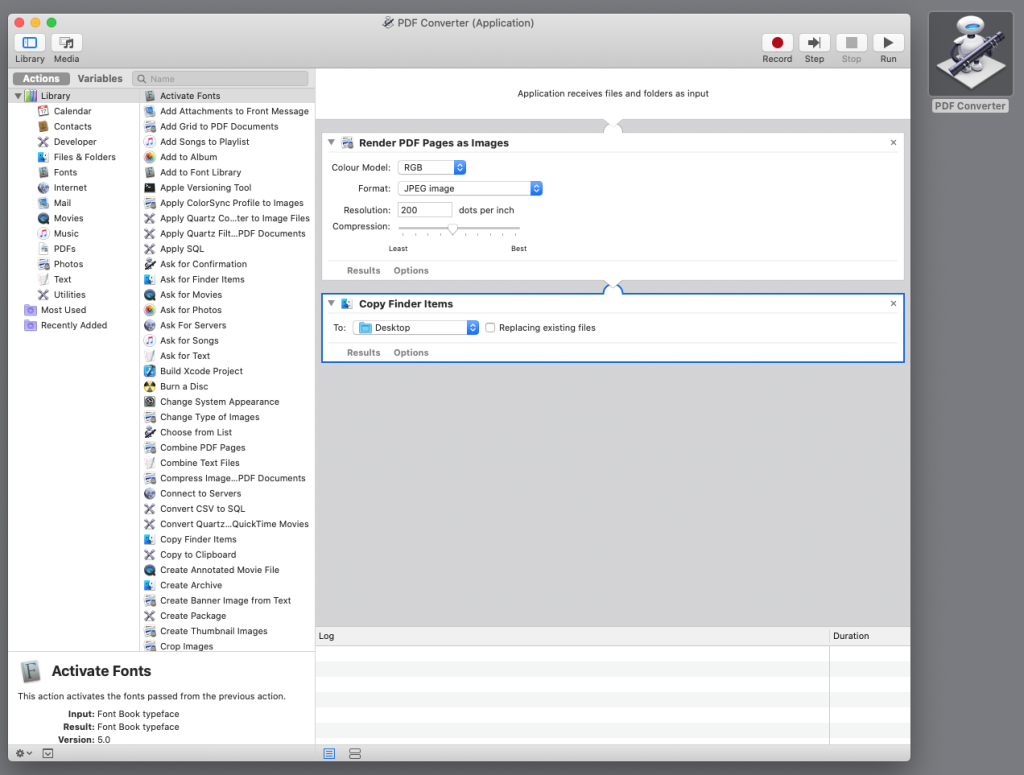
- 4 Scroll down the long list of options on the left and find “Render PDF Pages to Images”
- 5 Drag this action into the space on the right
- 6 Select JPEG (notice all the other file formats that you can convert to) and a compression (quality) level
- 7 Drag “Copy Finder Items” over to the workflow and select where you want the files saved
- 8 Save the action on your desktop File>Save
Now you will have an automator icon, simply select a number of PDF file thumbnails and drag them over the icon to convert and save in your chosen directory.
Leave a Reply